How to Join a Voice Room: Mic Setup & Etiquette
TL;DR
On Opia you join a voice room as a listener; microphone permission is asked once, the first time you go on stage. If your mic is too quiet, pick the right input in system sound settings, raise the input volume and move the headset mic closer. To talk, ask to speak, accept the invite, unmute, and introduce yourself in three short sentences.
To join a voice chat room on Opia, become a member of the community, pick the room and press Join room. You enter as a listener, and no microphone permission is requested yet. When you want to talk, ask to speak; the browser asks for your mic when you step on stage. If you sound quiet, check input settings first.
This guide is for the person joining. If you want to create a room, read How to open and run a voice room on Opia.
What do I need before I join a voice room?
You need an account, membership in the community that hosts the room, and a headset. No camera: Opia voice rooms are audio only, with no video and no live streaming. Only community members can enter, and speaking requires age verification and agreement to the current terms.
A quick checklist:
- A community. Join the community first. Rooms appear in its channel list under Voice rooms.
- A headset. Wired or Bluetooth, with a microphone. It stops echo before it starts.
- A current browser. Per MDN, browsers give microphone access only on secure (HTTPS) pages and only with your permission.
- No other call running. If you are already in another call, Opia says "You are in another call. End it first." If you are in a different voice room, joining a new one takes you out of the old one.
How do I allow my microphone in a browser or on my phone?
The permission prompt appears the first time you go on stage; choose allow. Nothing is asked while you only listen. If you blocked it by accident, reopen it from the browser's site settings. The table shows where to look; menu names shift a little between versions.
| Where | How to change the permission |
|---|---|
| Chrome (desktop) | More > Settings > Privacy and security > Site settings > Microphone. When asked you can pick "Allow while visiting the site", "Allow this time" or "Never allow". You can also choose a default microphone on that page. |
| Firefox | Click the permission icon at the left of the address bar, remove the blocked microphone permission and reload the page. The browser asks again. |
| Safari (Mac) | Safari > Settings > Websites > Microphone. Per site you choose Ask, Deny or Allow; with Deny the site can never use your mic. |
| iPhone (iOS) | Safari asks for permission. Settings > Privacy & Security > Microphone lists the apps that asked for the mic and lets you switch each one on or off. |
| Android | Tap the permission icon in the address bar of Chrome or your browser. If that doesn't work, go to Settings > Apps > your browser > Permissions > Microphone. Names vary by phone maker. |
Sources: Google Chrome Help and Apple Support, accessed October 27, 2026. Chrome also notes that at work or school, your network administrator may control these settings.
When permission is denied, the browser rejects the request with a NotAllowedError, as MDN documents. In Opia you see "The microphone is not available. Check the browser permission." and a Retry microphone button in the room. You keep listening meanwhile; fix the permission, then press the button.
The operating system has its own switch. On Windows 11 go to Start > Settings > Privacy & security > Microphone and make sure "Microphone access" and "Let desktop apps access your microphone" are on (Microsoft Support).
How do I set up audio, echo and headphones?
A headset with a mic is the most reliable setup: the sound stays in your ears, so it can't loop back into the mic. On speakers, turn the volume down and keep them away from the mic. If your headset cord has a mute switch, make sure it's off; Chrome's help page lists that as step one.
Check three things before you step on stage:
- Is the right microphone selected? With a headset plugged into a laptop, the system may still use the built-in mic.
- Is the mic close to your mouth? Too far and it picks up the room instead of you; too close and "p" and "b" pop. About a hand's width is a fair start.
- Test it. On Windows, Sound > Input has a Start test button. Say a few words and watch the level move.
When Opia opens your mic in a voice room it asks the browser for echo cancellation, noise suppression and automatic gain control. These are requested as preferences, so a browser or device that doesn't support them may skip them. The room has no mic picker of its own; Opia uses the default microphone of your browser and system. To switch, change the default (Site settings > Microphone in Chrome, or your system's Sound settings).
My mic volume is too low. How do I fix it?
Select the right microphone in system sound settings, raise the input volume, then move the mic closer. On Windows that is Settings > System > Sound > Input; on a Mac, System Settings > Sound > Input. Phones usually have no input level slider, so the fix is mic placement and a headset.
| Device | Steps |
|---|---|
| Windows 11 | Start > Settings > System > Sound. Under "Input" choose your microphone. In "Input settings" press Start test, speak normally, press Stop test and play the sample. Drag the Input volume slider up if needed (Microsoft Support). |
| Mac | Apple menu > System Settings > Sound > Input. Select the device and drag the input volume slider. Apple says to raise the level when you record someone speaking softly. |
| Phone | Make sure your finger, case or lint isn't covering the microphone hole. Hold the phone toward your mouth. A headset mic is usually closer than the phone's own. |
If it is still quiet:
- Check the cable or Bluetooth connection; Microsoft also advises checking the mic's position.
- Another app, such as a video call, may be holding the mic. Close it and reload the tab.
- Try the built-in mic to see whether the headset or the system is the problem.
- If people hear crackling, you raised the level too far. Back off and move closer instead.
What does noise suppression do, and how should I use it?
Noise suppression reduces steady background sound such as a fan, keyboard clatter or traffic. Opia requests it by default in voice rooms, so you usually don't need to turn on anything extra. Stacking a second filter (a headset's own, another program) can make your voice thin and robotic.
Practical rules:
- Mute while typing or eating. Filters don't always catch sudden, close sounds.
- A TV playing behind you is speech, so a filter may not remove it. Turn it off.
- If your voice sounds muffled, keep one filter and drop the others, then test again.
How do I go from listener to speaker?
Everyone joins as a listener. Press Ask to speak, and a moderator brings you on stage with Invite to speak; your mic permission is requested at that point. In some rooms the button says Go on stage and you step up without waiting. Press Leave to exit the room.
Step by step:
- Open the voice room from the community's channel list and press Join room. The room shows how many speakers and listeners are in it.
- If you can't hear anything, press Turn on sound; browsers sometimes hold audio back until you tap.
- Listen first. Speakers are on stage; raised hands and listeners have separate lists.
- When you have something to add, press Ask to speak. Your name shows with a "Wants to speak" label. Change your mind with Cancel request.
- When you are invited you get the notice "You were invited to the stage; you can speak now." Allow the microphone if the browser asks.
- The button reads Mic on or Mic off. Keep it off when you aren't talking.
- When you are done, press Leave the stage to go back to the audience.
If the stage is full you will see "The stage is full. You can be invited when a seat frees up." That is a queue, not an error. If age verification or agreeing to the terms is missing, Opia says so and you can keep listening. If a moderator muted you, the button reads "Muted by a moderator" and you can't unmute yourself until the mute is lifted.
Moderator tools are covered in the host guide; the general overview is on the voice chat page.
What should I say in the first 30 seconds, and what is voice chat etiquette?
Use three short sentences: who you are, why you're here, what you plan to do. The room is a shared space, so keep it brief. Etiquette boils down to this: don't interrupt, stay muted when you're not speaking, stay on topic and leave room for others.
Templates:
"Hi, I'm Elif. I came to listen to the topic and share my own experience in the second half. Let me hear you out first."
"Hello everyone, Kerem here. Can I add something to what was just said? It won't take more than a minute."
"Good evening, I'm Deniz. I just joined; tell me if my volume is low and I'll fix it."
Etiquette in short:
- Let the speaker finish. Ask to speak and wait your turn instead of cutting in.
- Mute when you're not talking. Keyboards, coughs and household noise go to the whole room.
- Stay on topic. The room's name and description say what's being discussed.
- Argue with the idea, not the person. The community guidelines apply to everyone in the room.
- Don't record or share what you hear without asking.
Voice room troubleshooting: the most common problems
Most problems come from one of three places: the browser permission, the microphone selected in the system, or a physical mute switch. The table goes from symptom to fix. Chrome's help page and Microsoft's follow the same order: check the headset mute first, then permissions, then restart the call and browser.
| Symptom | Likely cause | What to do |
|---|---|---|
| They can't hear me | You're not on stage, the mic is off, or a moderator muted you | Check that the button says Mic on and that you appear in the stage list |
| The permission prompt never appeared | The site was blocked earlier | Set the microphone to Allow in the browser's site settings, then reload |
| "The microphone is not available" | No permission, or another app holds the mic | Allow it, close other apps, press Retry microphone |
| My voice is very quiet | Input level is low or the mic is far away | Raise the input level, move the mic closer (see the table above) |
| I hear my own echo | Speakers leak into the mic | Put on headphones or turn the speakers down |
| I can't hear anyone | The browser is holding audio, or the output device is wrong | Press Turn on sound; check the system's audio output |
| "The room is full" or "The stage is full" | Capacity limit | Try again shortly; if the stage is full you can be invited once a seat frees up |
| Audio keeps cutting out | Weak connection | Move closer to the router or try mobile data; Opia tries to reconnect |
| "This account was opened in another room or on another device" | The same account joined from a second place | Close the other tab or device and rejoin |
Still stuck? Follow Chrome's last steps: leave, rejoin, restart the browser and, if needed, the computer.
How do I stay safe in a voice room?
Opia is for adults aged 18 and over. Don't share personal details such as your address, phone number, school or workplace; you don't know the people on the other end. You can Block and report anyone who bothers you. Reports are reviewed within 48 hours, and child-safety reports are handled first.
A short safety list:
- If you block someone in the room, you still see each other there but you no longer hear each other. You can unblock from inside the room.
- If someone pushes you to click a link or move to another app, you don't have to; block and report.
- Opia does not record voice in rooms, but another person can still record on their own device.
For a fuller read on what to watch for, see is voice chat safe? 12 rules and the Safety page.
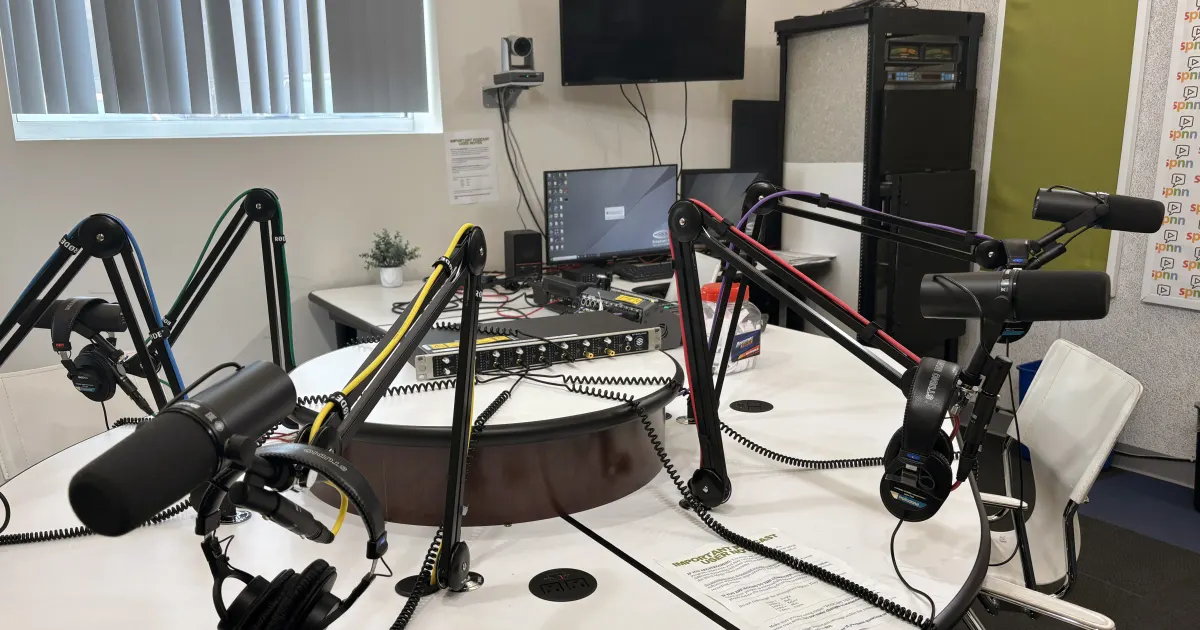
Cover image: Myotus, CC BY 4.0, cropped.
Frequently asked questions
- Why is my mic volume too low?
- Usually the wrong microphone is selected or the input level is low. On Windows open Settings > System > Sound > Input; on a Mac open System Settings > Sound > Input. Pick the right device, raise the input volume, move the mic closer to your mouth and check the mute switch on a headset cord.
- Do I need a camera to join a voice room?
- No. Opia voice rooms are audio only: no video, no live streaming and no recording. You don't even need a microphone to listen. To speak, a working microphone is all you need.
- They can't hear me. What should I do?
- Check that you are on stage and the button says Mic on; a moderator may have muted you. Then check the browser's site permission and the microphone selected in system settings. If a Retry microphone button appears in the room, press it. If nothing helps, leave and rejoin.
- How do I ask to speak in a voice room?
- After joining, press Ask to speak. A moderator brings you on stage with Invite to speak; when the notice appears you can turn your mic on. In some rooms the button reads Go on stage and you step up without waiting for an invite. Press Cancel request if you change your mind.
- Headphones or speakers?
- Headphones. Sound from speakers can leak back into your microphone and cause echo. Browser echo cancellation reduces it, but headphones remove the cause. Wired or Bluetooth does not matter; what matters is the mic near your mouth and the audio staying in your ears.
Sources
- Google Chrome Help: Use your camera and microphone in Chrome(opens in a new tab)
- Microsoft Support: Fix microphone problems (Windows)(opens in a new tab)
- Apple Support: Change the sound input settings on Mac(opens in a new tab)
- Apple Support: Change Websites settings in Safari on Mac(opens in a new tab)
- Apple Support: Control access to hardware features on iPhone(opens in a new tab)
- MDN: MediaDevices.getUserMedia()(opens in a new tab)